
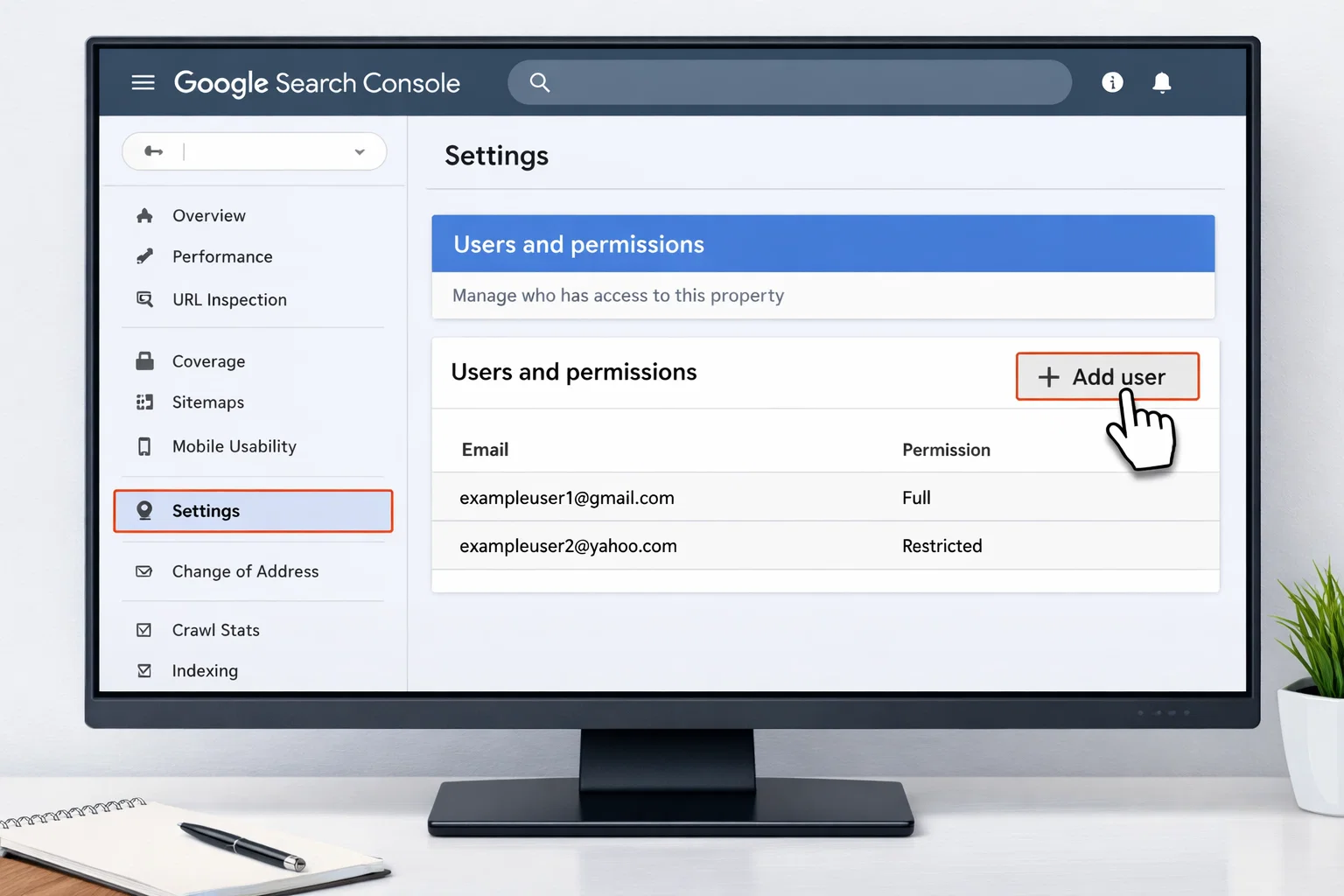
To add a user to Google Search Console, you must be a property owner. Open Search Console, select your property, go to Settings → Users and permissions, click Add user, enter the email address, choose a permission level, and save. The user will get access immediately.
Key Takeaways
- ✔ Only property owners can add or manage users in Google Search Console
- ✔ Users are added from Settings → Users and permissions
- ✔ You can assign Owner, Full, or Restricted access levels
- ✔ Added users get access immediately using their Google account email
- ✔ Permissions can be changed or removed at any time
Step-by-Step: How to Add a User to Google Search Console
Follow these steps to add a new user to your Google Search Console property. You must be logged in as a property owner.
Step 1: Open Google Search Console
Go to Google Search Console and sign in using the Google account that owns the property.
Step 2: Select the Correct Property
From the property selector in the top-left corner, choose the website where you want to add a user. Make sure you’re selecting the correct domain or URL prefix property.
Step 3: Go to Settings
In the left-hand navigation menu, scroll down and click Settings.
Step 4: Open “Users and Permissions”
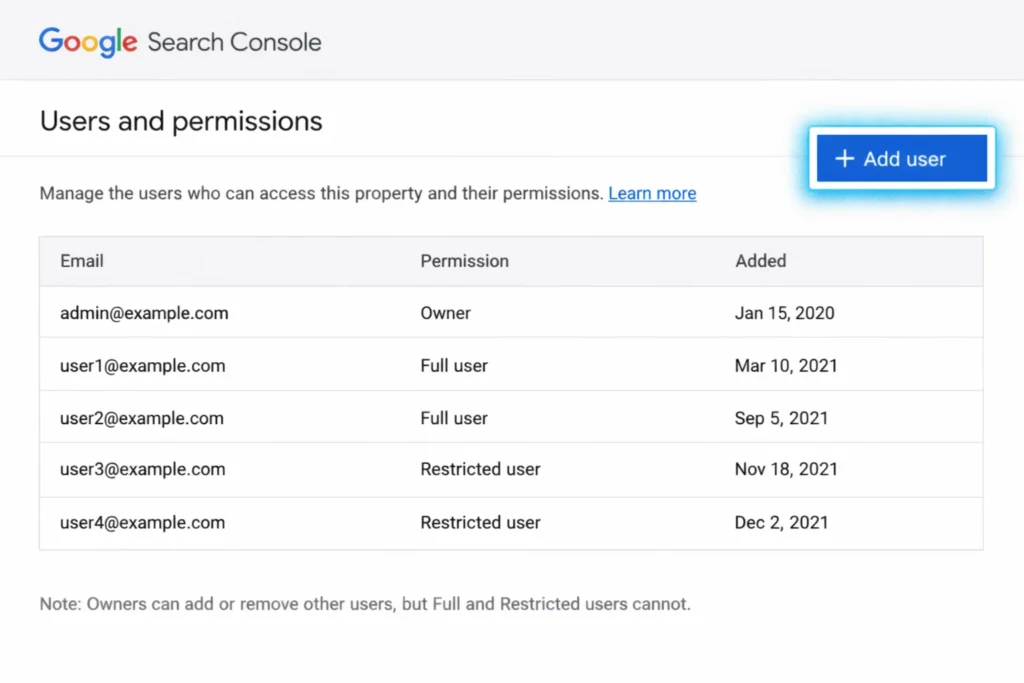
Under the Settings section, click Users and permissions. This is where all current users and access levels are managed.
Step 5: Click “Add User”
Click the Add user button in the top-right corner of the screen.
Step 6: Enter the User’s Email Address
Enter the Google account email address of the person you want to give access to. The email must be associated with a Google account.
Step 7: Choose a Permission Level
Select one of the available permission levels:
- Owner
- Full user
- Restricted use
Step 8: Save Changes
Click Add to save. The user will get access immediately and can log in without accepting an invitation.
Who Can Add Users in Google Search Console?
Only users with Owner permissions can add, edit, or remove users in Google Search Console. If you don’t see the “Users and permissions” option under Settings, it means your account does not have owner-level access.
There are two types of owners in Google Search Console:
- Verified Owner – Has full control and can add or remove other owners after verification
- Delegated Owner – Has owner rights but was added by another verified owner
Google Search Console User Permission Levels Explained
Google Search Console offers different permission levels so you can control what each user can access. Choosing the right role helps protect your website data while allowing collaboration.
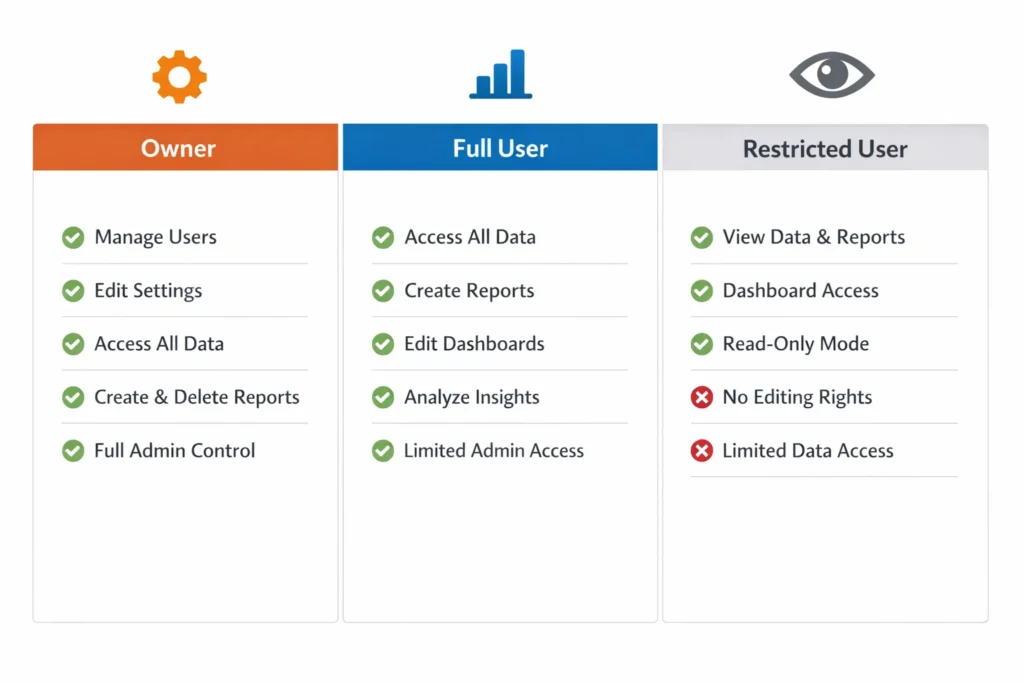
Owner
Owners have full control over the property. They can add or remove users, change settings, submit sitemaps, and manage all permissions. There are verified owners and delegated owners, but both can manage access.
Full User
Full users can view almost all Search Console data, including performance reports, coverage issues, and enhancements. However, they cannot add or remove users or change ownership settings.
Restricted User
Restricted users have limited, read-only access. They can view basic data but cannot see sensitive information or make changes. This role is best for clients or stakeholders who only need high-level insights.
Common Problems When Adding Users to Google Search Console (and Solutions)
| Problem | Why It Happens | Solution |
| You don’t see “Users and permissions” | Your account doesn’t have Owner access | Ask a property owner to upgrade your role or add the user on your behalf |
| The wrong property was selected | Domain and URL prefix properties are separate | Add the user to the correct property from the property selector |
| Email address isn’t a Google account | Search Console only works with Google accounts. | Ask the user to create a Google account using that email |
| User can’t see enough data | The user was added as a Restricted user. | Edit the user’s permissions and change them to Full user |
| The user says access is missing | User is logged into a different Google account | Make sure they are signed in with the exact email added in Search Console |
SEO Portfolio Highlight: Online Las Vegas Flower Shop
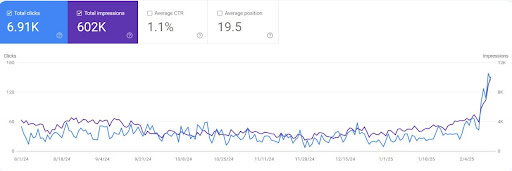
For an online flower shop in Las Vegas, a highly competitive local market, a focused SEO strategy was implemented to improve organic visibility and qualified traffic.
SEO results achieved:
- 6,910+ organic clicks
- 602,000+ search impressions
- 1.1% average CTR
- Consistent upward growth trend in Google Search Console
These results were driven by targeted local keyword optimization, on-page SEO improvements, and data-driven performance tracking.
Looking for similar SEO growth in the USA? Work with an experienced SEO Specialist USA to increase your organic visibility and attract high-intent traffic.
Frequently Asked Questions About SEO Terms
What are SEO terms?
SEO terms are words and phrases used to describe how search engines work and how websites are optimized to rank in search results. Understanding these terms makes SEO easier to learn and apply.
Why is it important to understand basic SEO terminology?
Knowing SEO terms helps you understand reports, communicate better with SEO professionals, and make informed marketing decisions instead of relying on guesswork or misleading promises.
Are SEO terms difficult to learn for beginners?
No. Most SEO terms are simple concepts once explained clearly. With basic understanding, anyone can grasp how search engines rank websites and how SEO improves visibility.
Do I need to know all SEO terms to do SEO successfully?
Not all of them. Knowing the fundamentals—such as keywords, backlinks, and on-page SEO, is enough to understand how SEO works and evaluate strategies effectively.
Do SEO terms change over time?
Some terms stay the same, but new concepts are added as search engines evolve. Keeping up with basic terminology helps you adapt to updates without confusion.
Where can I learn more about SEO concepts in simple language?
Beginner-friendly guides, glossaries, and practical resources make SEO much easier to understand. Learning step by step is the best approach.
Discover More Guides with SEO Specialist USA